

Adding and Editing Dimension Values
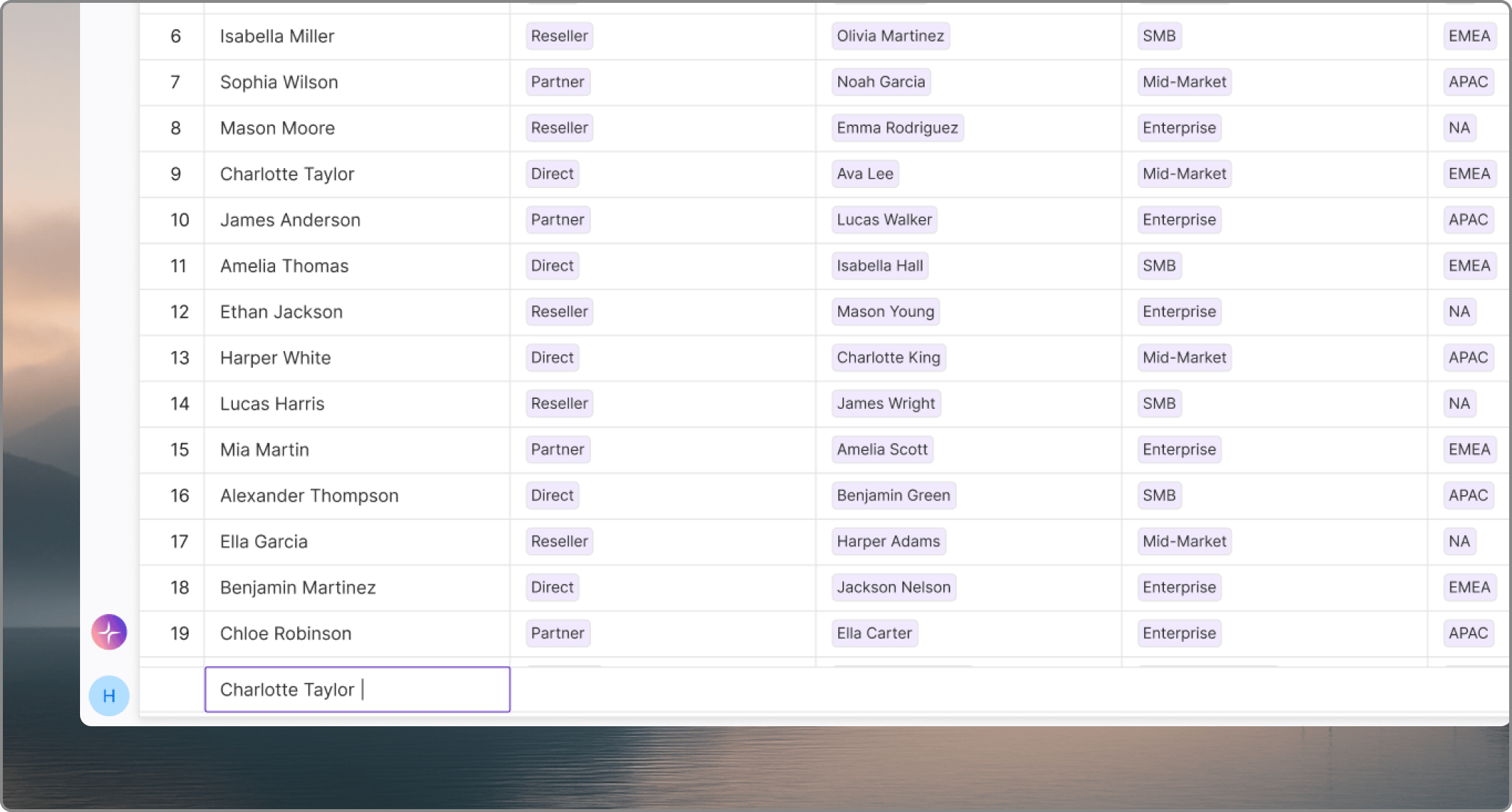
- Add Values: Create a new row at the bottom of the list or insert one in between existing items to add a new dimension value.
- Edit Values: Click directly into any cell to rename a dimension value or update its properties.
Linking Dimensions
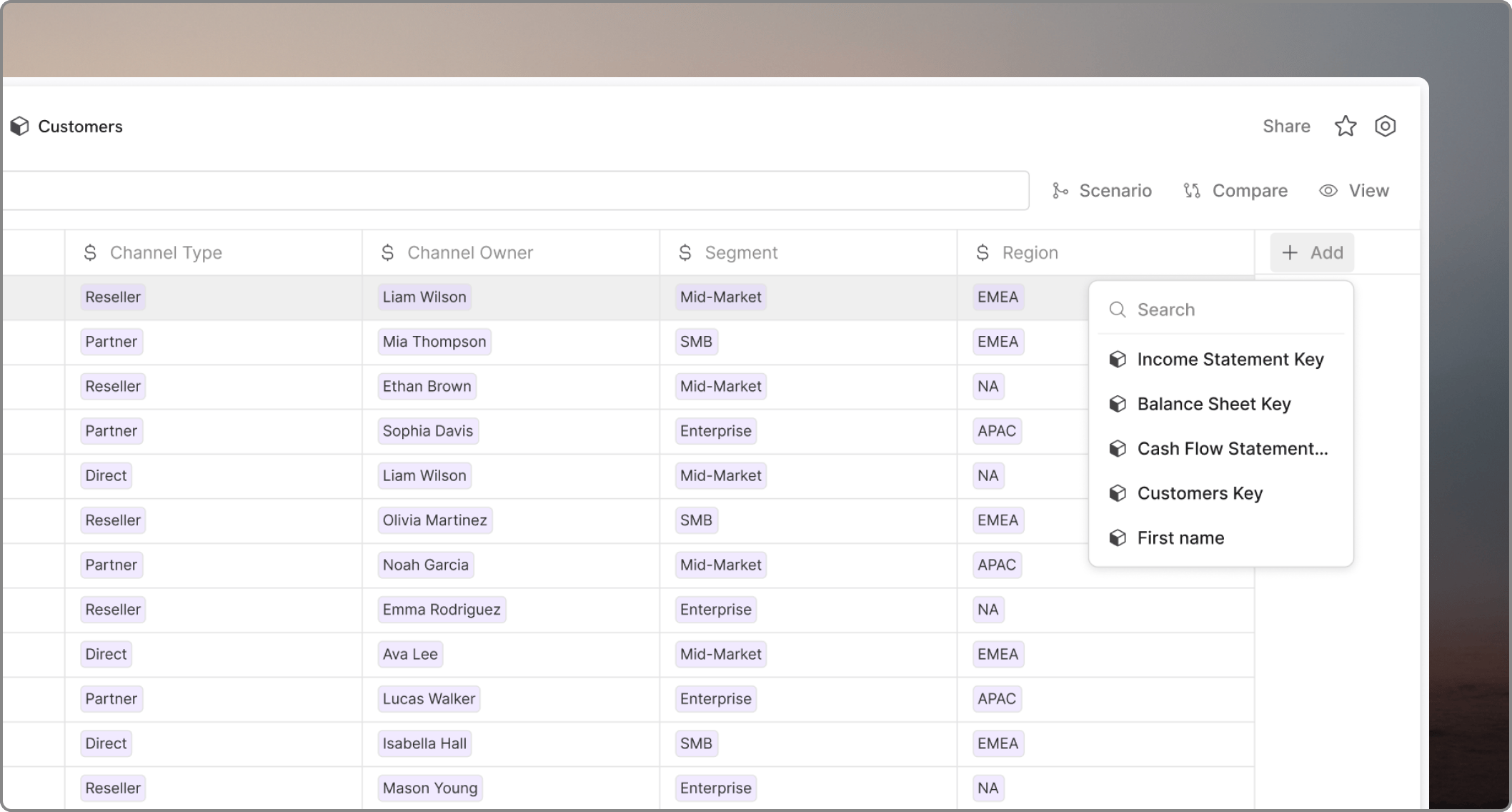
- Create Links: You can add other dimensions as columns within a base dimension. This establishes a link between them.
- Example: If you have an Employee dimension, you can add a Department dimension as a column. This allows you to assign each employee to a specific department.
Dimension Lookups
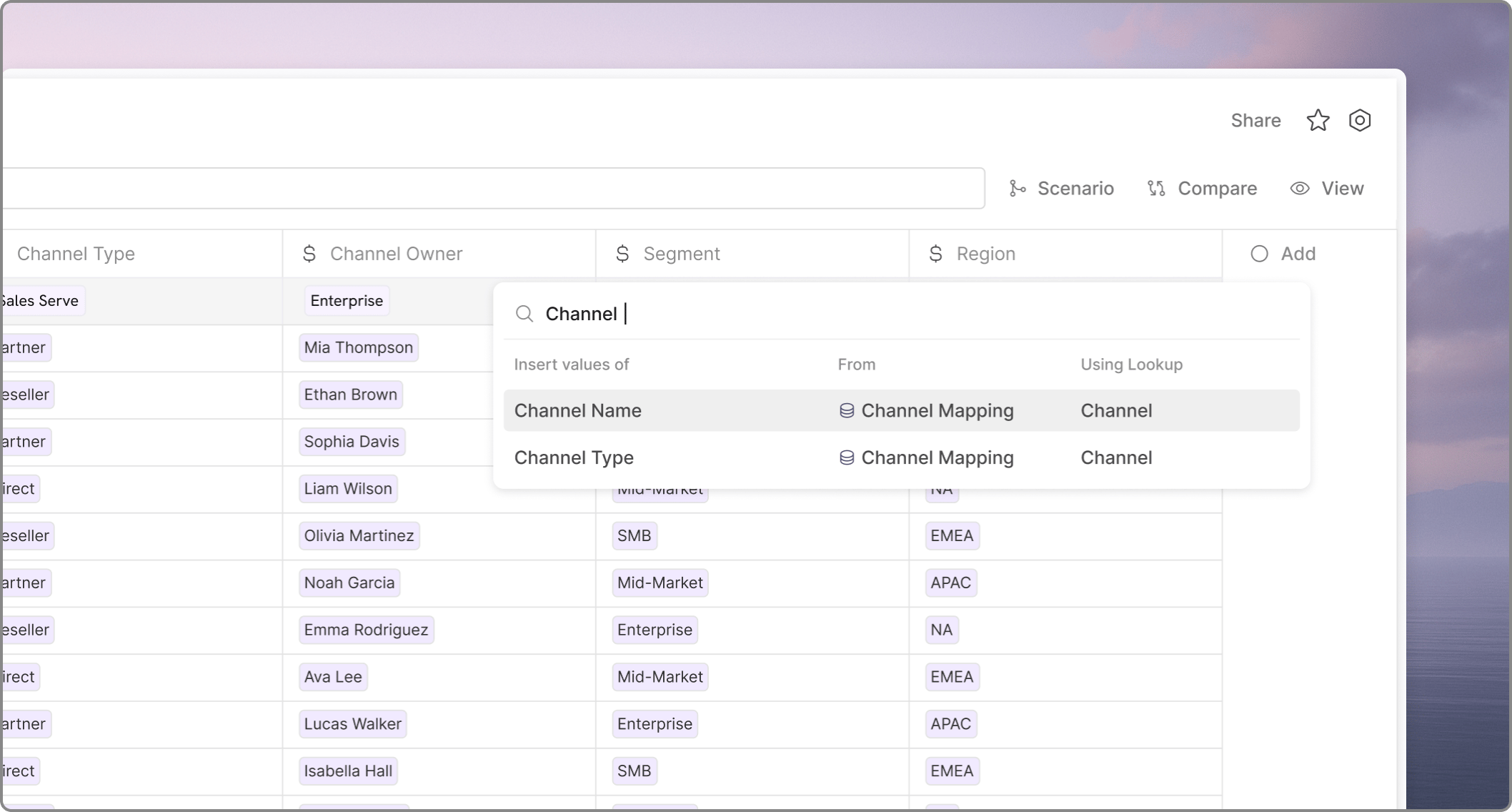
- Chain Links: You can create lookup columns that span multiple links. For example, if Employee is linked to Department, and Department is linked to Entity, the Employee dimension can have a lookup column that pulls the Entity value automatically based on the linked department.
- Automatic Sync: When an employee’s department is updated, any associated lookup columns (like Entity) reflect those changes immediately across your model.
Multiple Dimension Values and Relationships
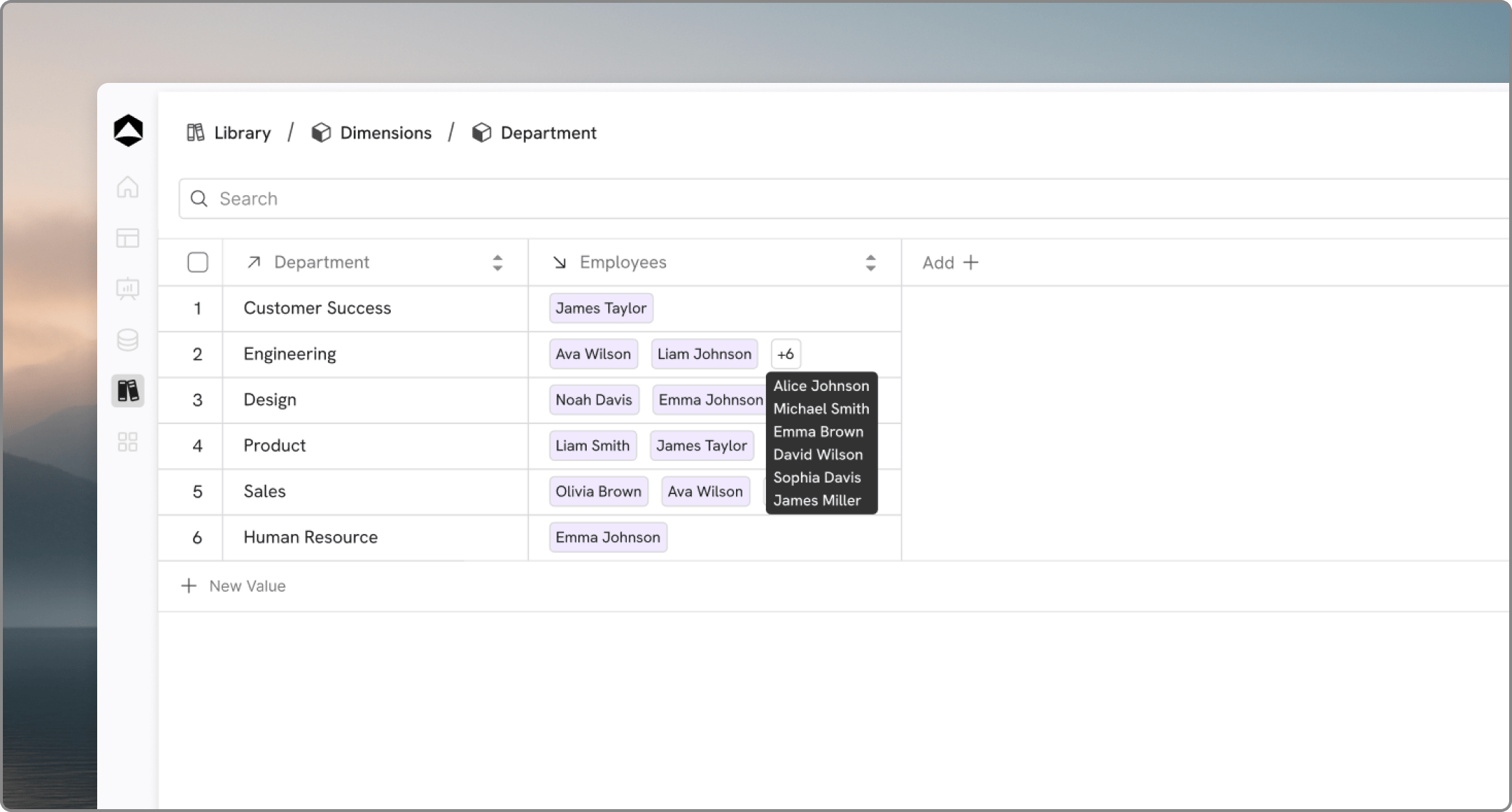
- Many-to-One: Multiple items in one dimension map to a single item in another. This is the most common relationship.
- Example: Mapping multiple Sales Reps to a single Sales Region.
- One-to-One: A unique relationship where one item maps strictly to one other item.
- Example: Mapping an Employee ID uniquely to a Cost Center.
- One-to-Many: A single item maps to multiple values, allowing for complex data breakdowns.
- Example: A single Marketing Campaign that spans multiple Advertising Channels.