

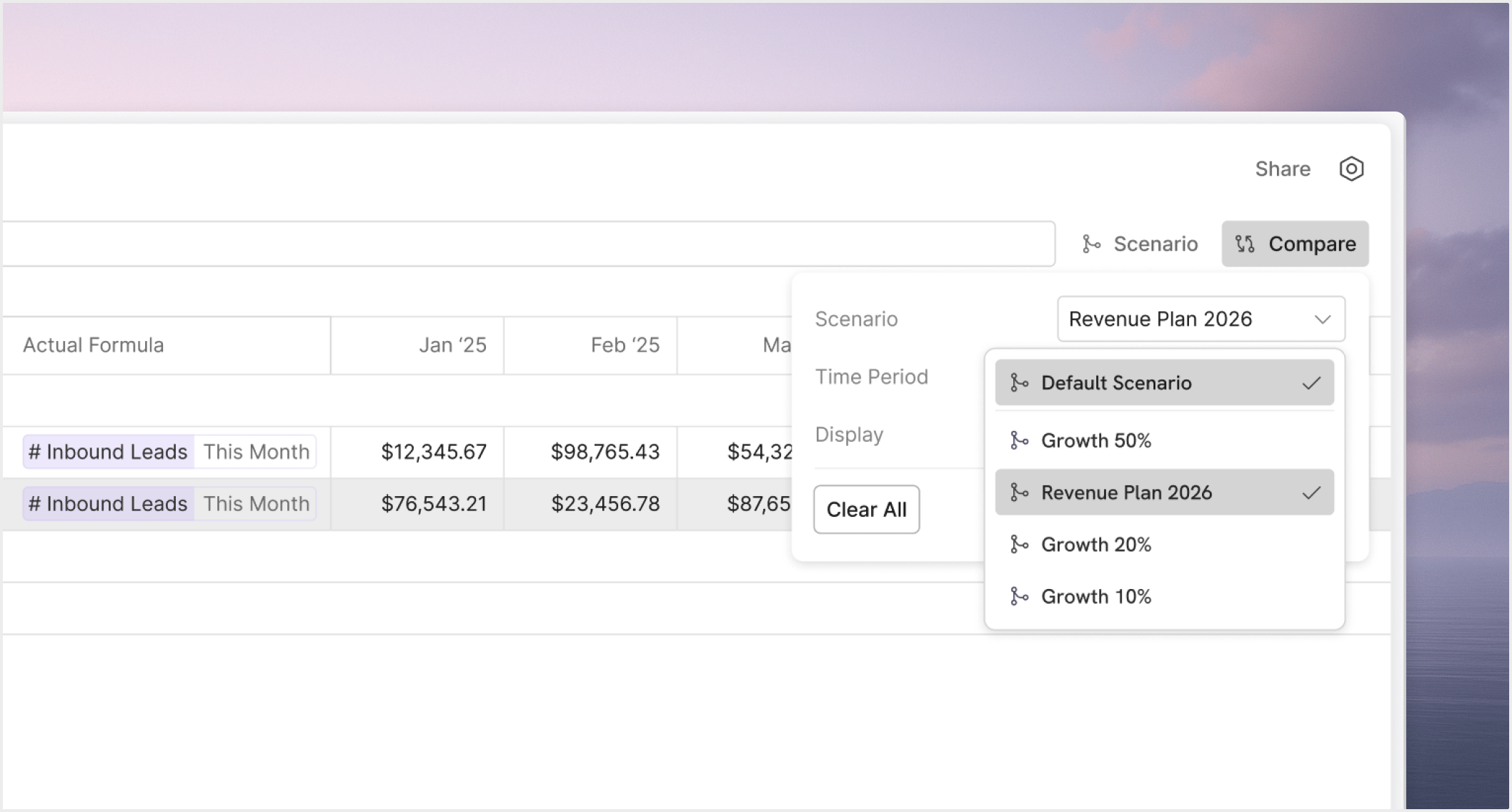
What compare is for
Compare is most useful when it supports an actual decision. Common examples include:- current forecast versus approved budget
- working scenario versus
Main Scenario - a draft case versus a locked baseline
- one departmental assumption versus another
Start with the right baseline
A comparison only feels useful when the baseline is clear. In most cases, the right starting points are:Main Scenarioas the shared default branch- a locked or approved scenario used as a stable checkpoint
Compare across the right surfaces
The current scenario story assumes comparison should behave consistently across:- tables
- charts
- boards
Keep the comparison focused
Good comparisons stay narrow enough to tell a story. Start with:- the few metrics that drive the decision
- the time periods that matter
- the dimensions that explain the variance
Compare before governance actions
Compare is especially helpful before:- merging a scenario
- locking a scenario as an approved baseline
- deleting or retiring an older branch