

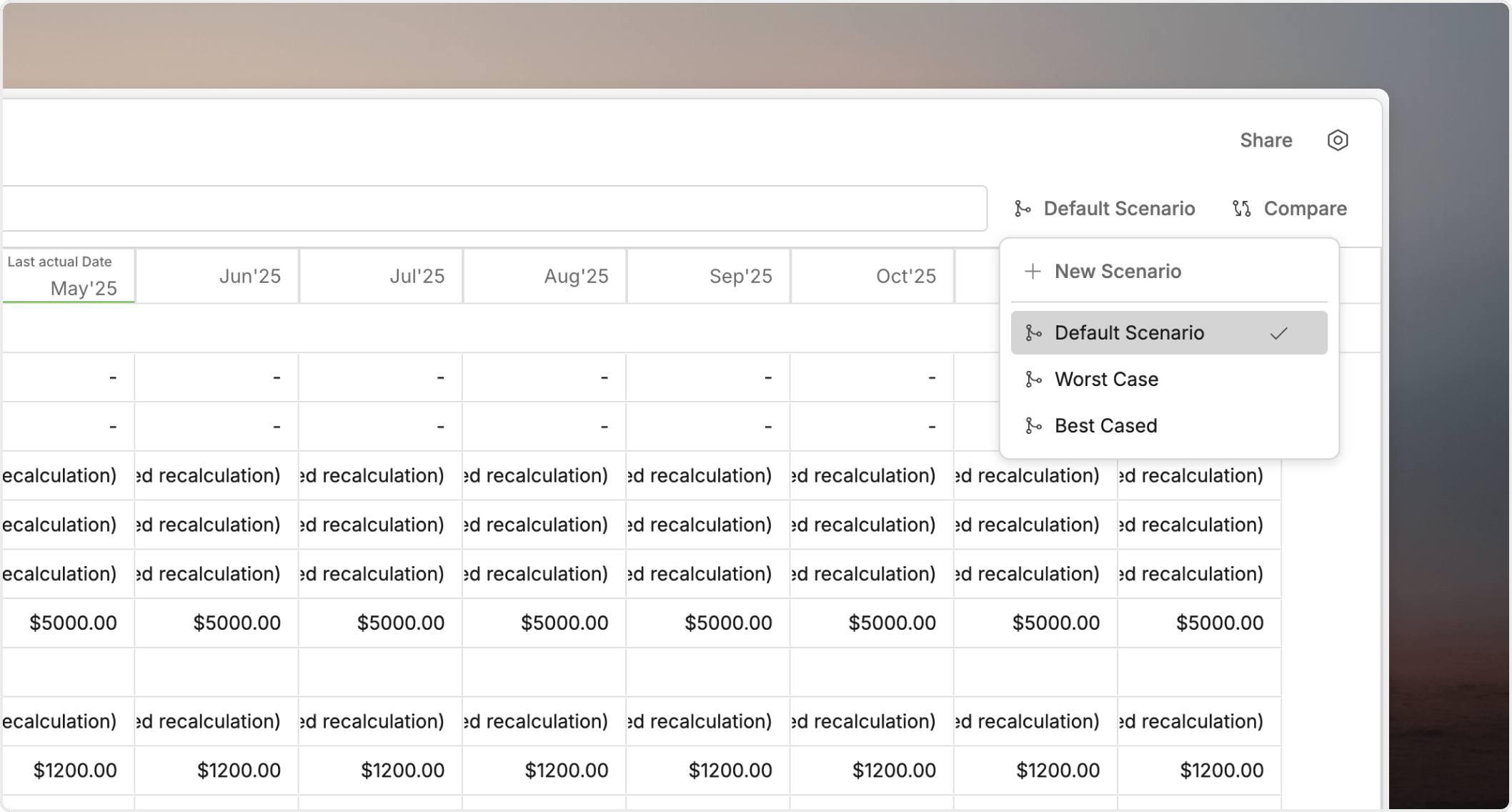
Start from the scenario switcher
In the current Oculon workflow, the scenario switcher is the main entry point for scenario work. From there, users should be able to:- see the active scenario clearly
- switch to another scenario
- create a new scenario
- avoid editing the wrong branch by mistake
Create a new scenario
Create a scenario when you want to test a new case without changingMain Scenario.
A practical workflow looks like this:
- Open the scenario switcher.
- Choose the option to create a new scenario.
- Give it a clear name.
- Land directly inside the new scenario.
- Make only the changes needed for that case.
Main Scenario unless the user is intentionally duplicating another branch.
Keep active scenario context obvious
Active scenario context is one of the most important safeguards in the feature. Users should always be able to tell:- which scenario is active
- whether they are working in
Main Scenarioor a derived scenario - whether the current branch is meant for exploration or review
Duplicate when you want to branch from an existing scenario
Use duplication when you want to continue from a scenario that already contains useful effective values. This is especially helpful when:- an approved baseline should remain intact
- you want a new draft from a reviewed branch
- the next planning cycle should begin from an existing scenario instead of
Main Scenario
Name scenarios like communication tools
Good scenario names help other people understand purpose and lifecycle quickly. Names usually work best when they encode:- the planning question
- the audience or review state
- the lifecycle stage when relevant
FY26 hiring plan - draftBoard baseline - lockedDownside case - review