

Adding Content to the Canvas
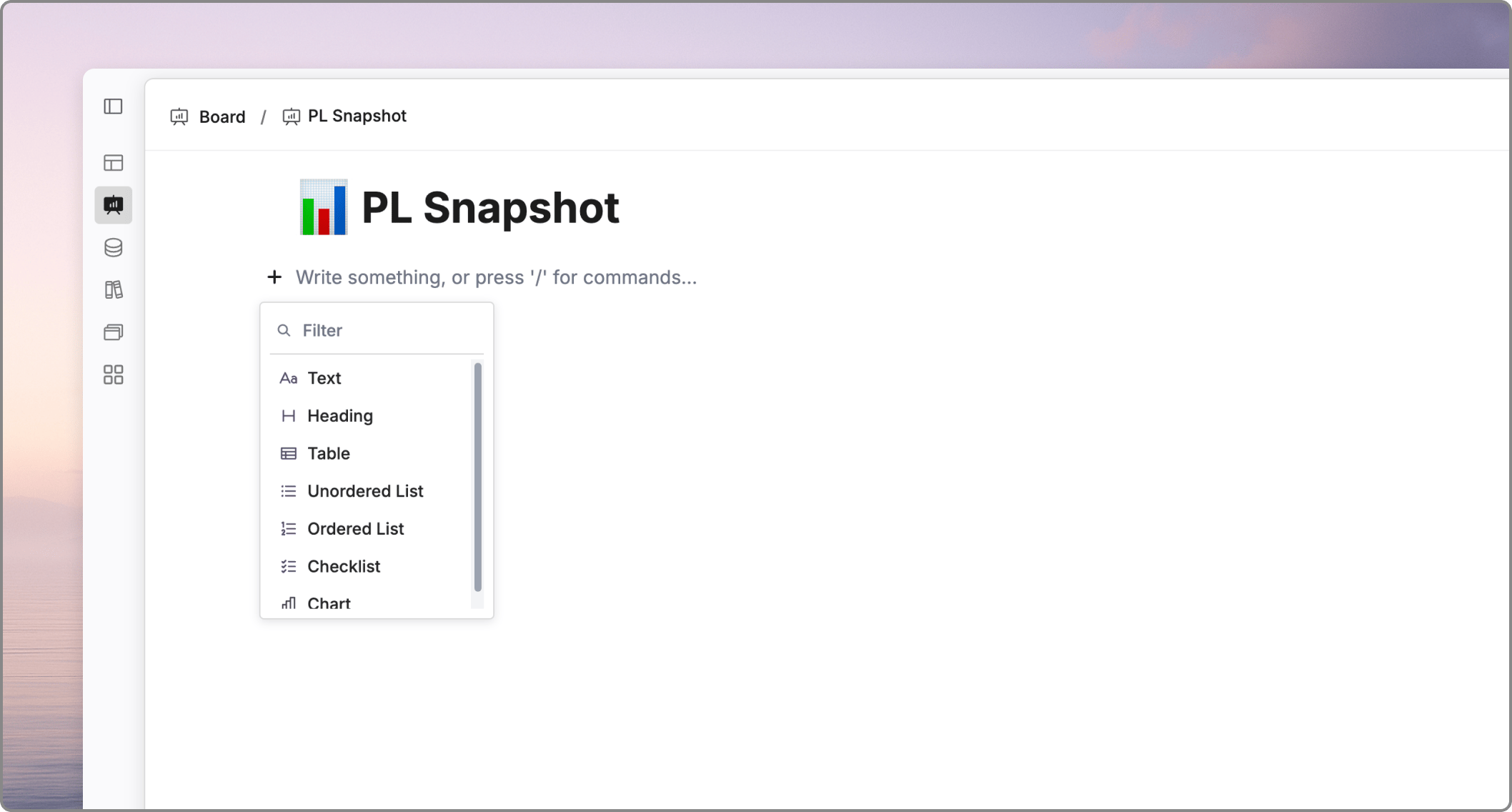
+ icon that appears when you hover over the canvas. This opens a menu of available items:
Note: You can type text directly anywhere on the canvas at any time; there is no need to select it from the + menu unless you want specific formatting.
Layout & Arrangement
Oculon provides a flexible grid system to help you align your analysis and reporting elements.- Side-by-Side Cards: You can arrange up to two cards (such as charts or KPI blocks) side-by-side to compare metrics or show related data at a glance.
-
Block Management: Every element on the canvas is treated as a block. To manage a block:
- Hover over the element to reveal the six dots icon (handle) on the left side.
- Click and drag the handle to move the block to a new position.
- Click the handle once to open a menu for copying, duplicating, or deleting the block.
- Drag and Drop: You can drag any block and place it exactly where you want on the canvas.
- Resizing: Shift cards between full-width and half-width by dragging them into position side-by-side.