

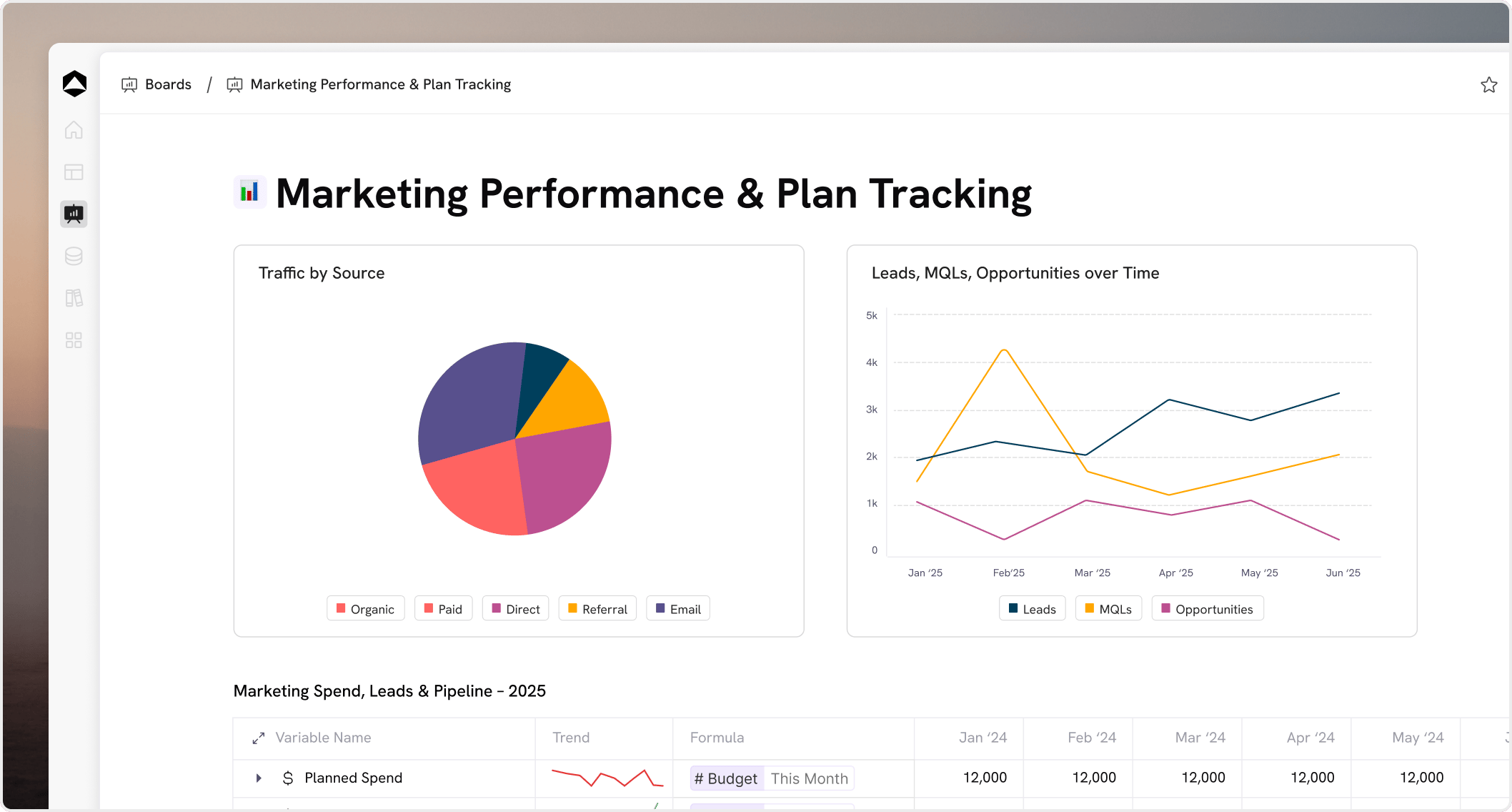
Create a board
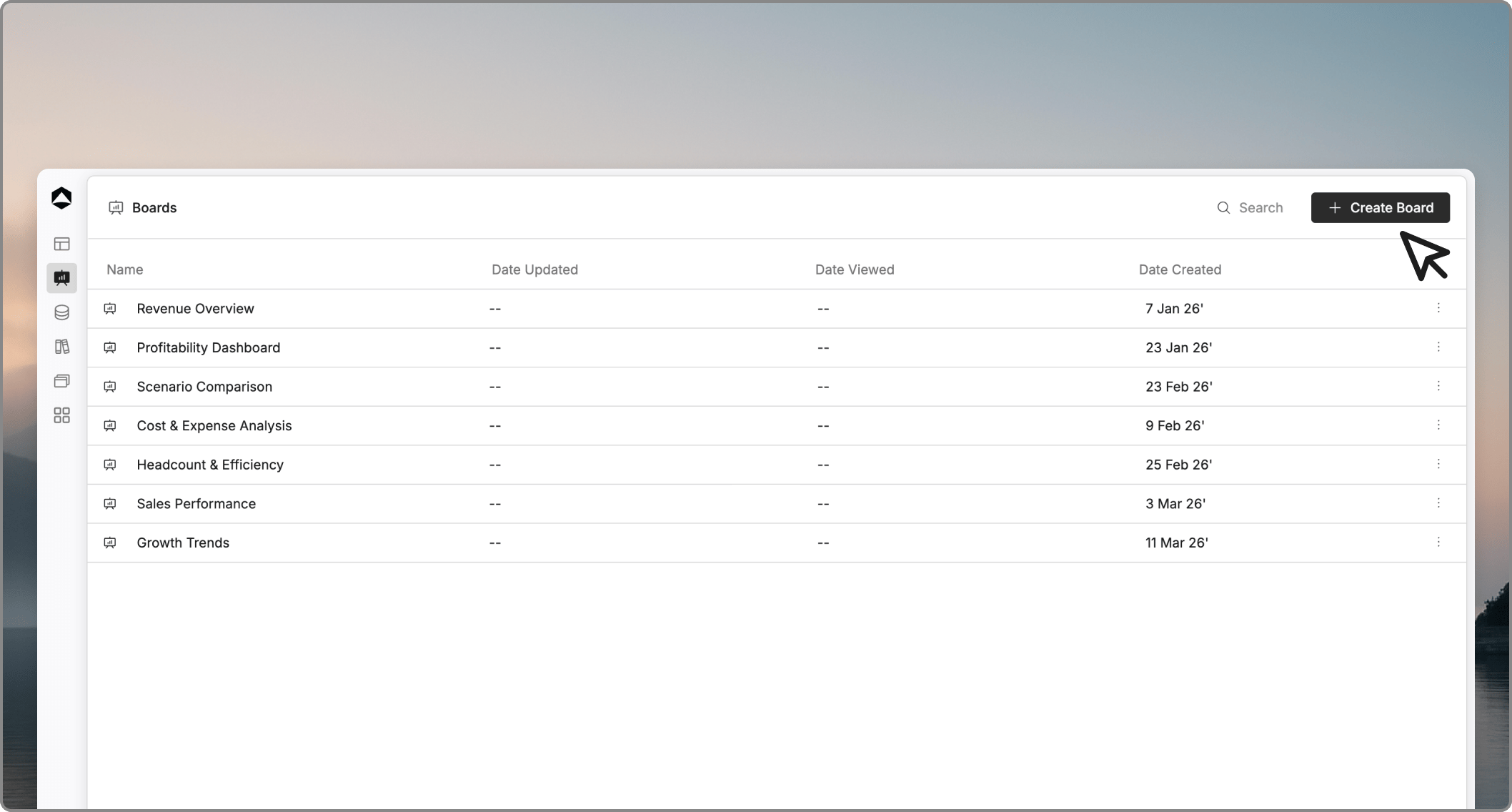
Boards are the primary way to share insights and reports across your team. Creating one is a quick process that allows you to start building your presentation layer immediately.1. Access the Boards list
To view your existing boards or start a new one, click on Boards in the left-hand navigation sidebar. This will open the main Boards library view, where you can see all boards you have access to.2. Initialize a New Board
3. Update the board name
New boards are created with the default titleUntitled. To give your board a meaningful name:
- Navigate to the top header of the board.
- Click directly on the
Untitledtext to activate the edit mode. - Enter your desired board name (e.g., “Monthly Executive Review”) and press Enter.
4. Setting up your Board Canvas
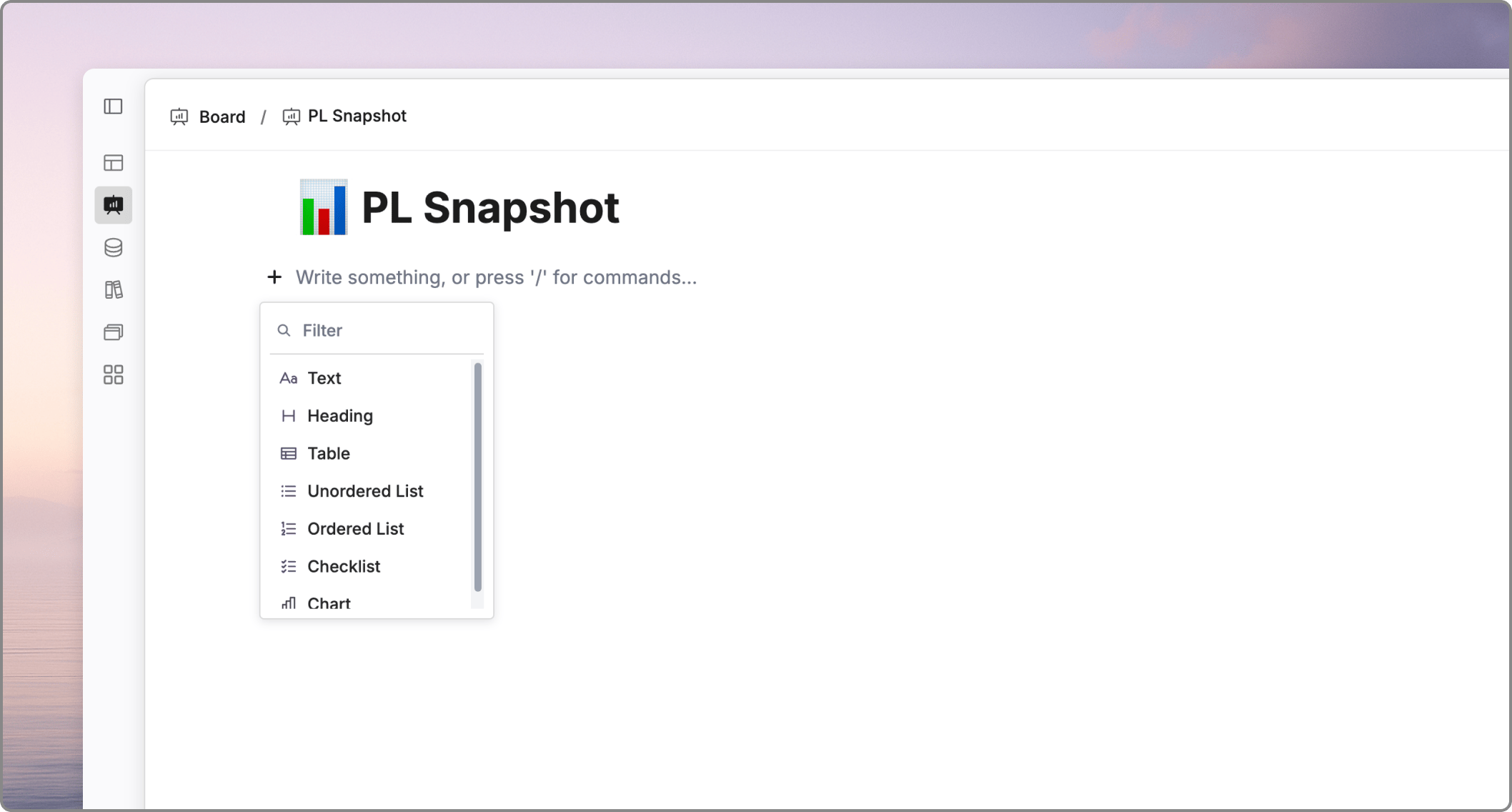
+ option in the canvas. Each card is powered by the logic and data from your underlying models.
5. Organization
For better team collaboration, you can move your board into a specific Teamspace. This ensures that the right groups of people have visibility and can contribute to the reporting process.Why boards matter
Boards turn planning logic into a decision-ready experience. They help stakeholders review the right metrics without opening the full model.What boards are best for
- Executive updates
- Monthly business reviews
- Team dashboards
- Scenario review packs
- Shared monitoring surfaces