

- Bar Charts: Used for comparing discrete categories or distinct metrics.
- Line Charts: Best for visualizing trends and movements over continuous time periods.
- Metric Charts: Ideal for highlighting key KPIs with high density.
Adding a Chart
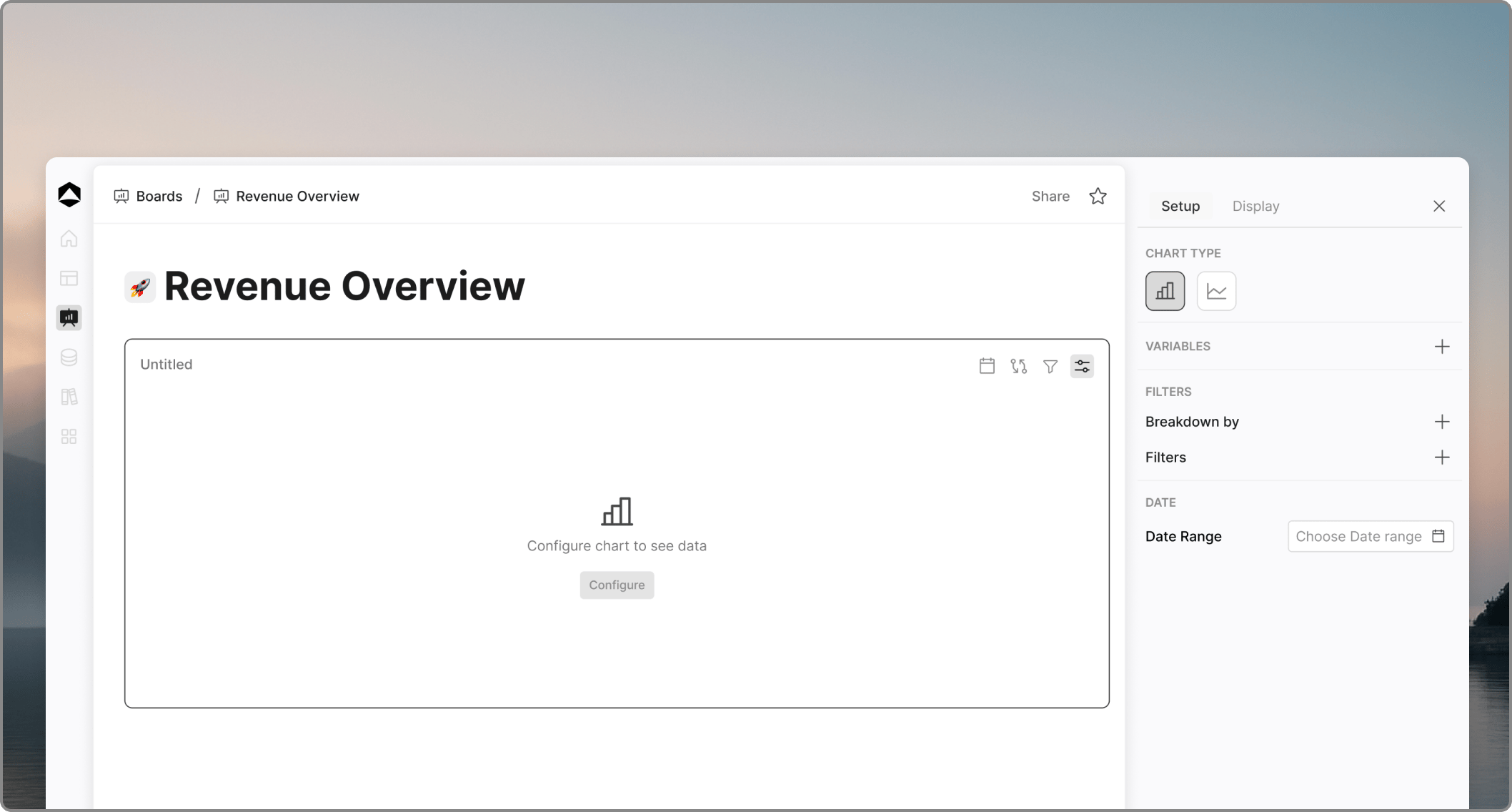
- A full-width empty card is placed on the canvas.
- The configuration panel opens on the right side of the interface, allowing you to build and customize your visual.
Configuration: Setup Tab
The Setup tab is where you define the data and primary structure of your chart.- Chart Type & Theme: Choose between a Bar or Line chart and select a color theme that fits your reporting style.
- Variables: Select one or more variables from your models to populate the chart data.
- Breakdowns (Dimensions): Add a dimension to the chart to “break down” the data, splitting the bars or lines into detailed categorical slices.
- Filters (Dimensions & Scenarios):
- Add filters for specific Dimensions or Scenarios directly to the chart card.
- For Scenarios, you can filter to view specific scenarios (one at a time) to compare performance.
- Adding a filter creates a control component on the chart card where users can toggle between values to update the data instantly.
- Time Filter: Add a time-based filter to the chart. This places a date range component on the chart card, allowing users to choose specific date ranges to narrow the visual analysis.
Configuration: Display Tab
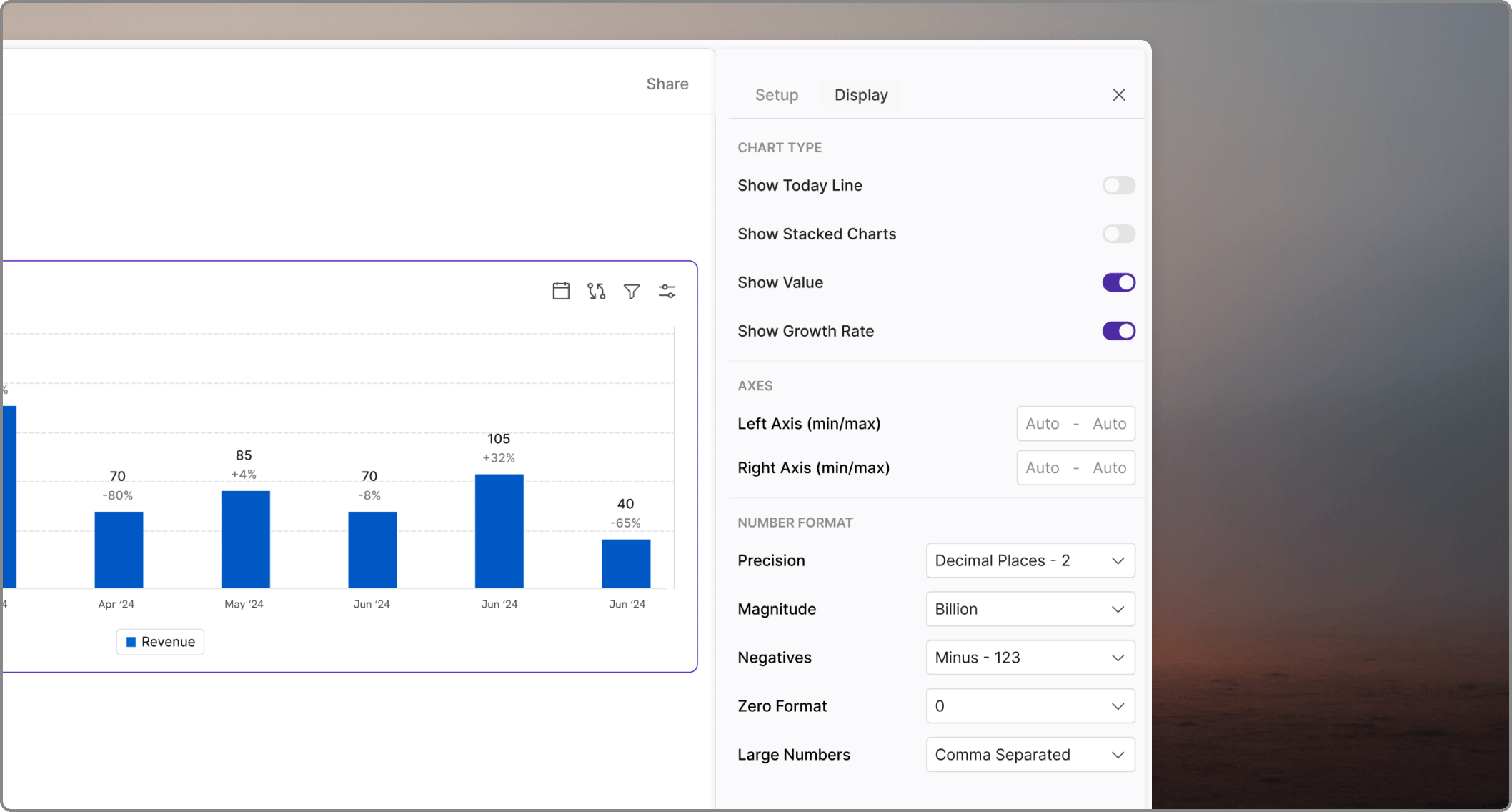
Chart Display Type
Use these toggles to refine how data is presented:Axes Configuration
Customize the scale and limits for your data:- Left and Right Axis: Enable or disable axes independently.
- Axis Limits: Set custom Lower and Upper limits to control the zoom and focus of your data range.