

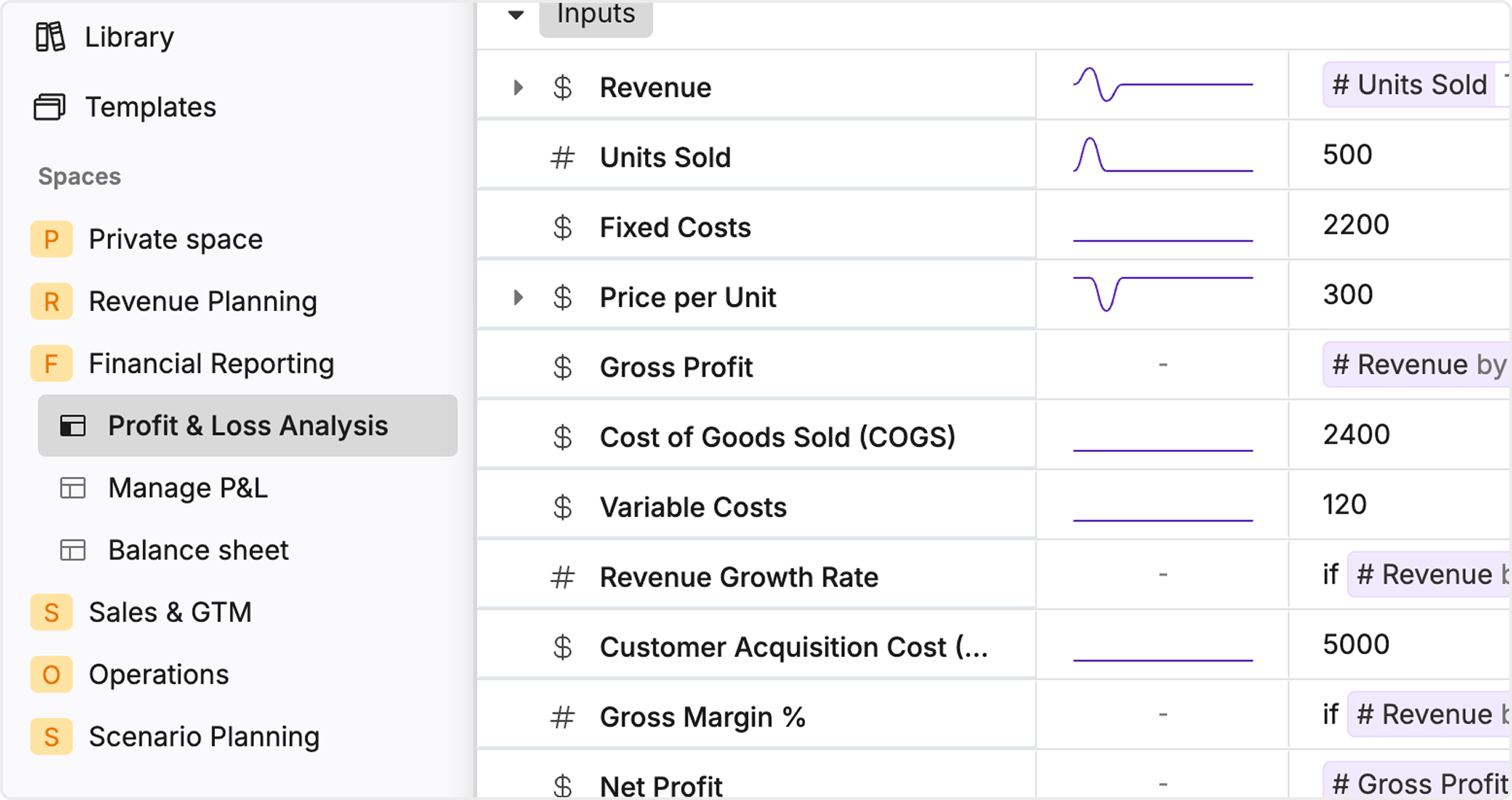
What is a Teamspace?
A Teamspace is a zone in your workspace with:- Its own membership (who is in/out)
- Clear roles (Owner, Member)
- Settings that govern visibility, joining, and permissions
- A place where pages and resources can inherit Teamspace access rules
When to use a Teamspace
Create a Teamspace when you need any of the following:- A team‑specific area (Finance, Sales Ops, Product, Support)
- A private or semi‑private hub for sensitive work
- A clear boundary so only the right people can find and access team content
- Delegated admin: Team owners can manage members and settings without central admin involvement
Core concepts
Roles: Owner vs Member
Teamspaces use role-based access control (RBAC).- Teamspace Owner
- Full control of Teamspace settings
- Can manage membership (add/remove people and groups)
- Can control security policies (who can manage members, edit settings, or delete)
- Typically responsible for governance and long‑term structure
- Teamspace Member
- Can access Teamspace content based on their permissions
- Can collaborate in the Teamspace as allowed
- May be able to invite others or edit settings depending on Security configuration
Creating a Teamspace
Creating a Teamspace is a guided flow designed to be quick and safe.Creation flow
- Start “Create Teamspace”
- Enter a Teamspace name
- Choose an icon (optional but recommended for easy navigation)
- Add an optional description (helps others understand purpose)
- Add initial members (people and/or groups)
- Finish to create the Teamspace
- Pick a name that matches how people search (e.g., “Finance”, “RevOps”, “Customer Success”).
- Add a description with scope and audience (“Private finance planning, reporting, and approvals”).
General settings
General settings control identity and how people join and discover the Teamspace.Edit Teamspace metadata
Owners can update:- Name
- Icon
- Description
Join permissions (Open / Closed / Invite‑only)
Join permissions define who can enter the Teamspace:- Open
- Anyone in the workspace can join
- Best for broad, low‑risk collaboration spaces
- Closed
- The Teamspace can be visible, but joining requires approval or a request flow
- Best when you want discoverability without automatic access
- Invite‑only
- Only invited users can access (and the Teamspace may be hidden to others)
- Best for sensitive teams or confidential projects
Default access levels
General settings may include defaults for Owners and Members. These defaults help apply consistent access rules as the Teamspace grows.Leave or delete a Teamspace
Teamspaces support clear exit paths:- Leave Teamspace
- Members can leave when they no longer need access
- This keeps membership current and reduces noise
- Delete Teamspace
- A destructive action intended for Owners
- Deletion should be protected with confirmations and security checks
Members management
Members settings are designed to help teams onboard/offboard quickly and keep roles accurate.Add members (users and groups)
Owners can:- Add users by searching the directory or inviting via email
- Add groups for scalable access control (recommended for departments)
Remove members
Remove users or groups when:- Someone changes teams
- A project ends
- Access should be limited for compliance/security
Assign roles
In the Members list, owners can set roles:- Owner
- Member
Search and filtering
Large Teamspaces benefit from member search and filtering so owners can quickly audit who has access.Security settings
Security settings define who is allowed to manage sensitive Teamspace operations. This is where you lock down governance.Control who can manage members
Choose whether:- Only Owners can add/remove members
- Members can also manage membership (use with caution)
Control who can edit Teamspace settings
Decide who can change:- Name/icon/description
- Join permissions
- Default access
Control who can delete the Teamspace
Deletion should typically be Owner‑only. This reduces risk of accidental or malicious destruction.How permissions apply to Teamspace content
A key benefit of Teamspaces is consistent permission enforcement.Inheritance
Pages and resources inside the Teamspace can inherit Teamspace access rules. This helps keep content secure and reduces the need to manage permissions on every page.Real-time updates
When membership or roles change, access should update in real time across Teamspace content so:- New members can immediately access what they need
- Removed members lose access immediately
Visibility and collaboration outcomes
Teamspaces are built to:- Reduce workspace clutter by grouping content into clear areas
- Reduce admin bottlenecks by delegating governance to team owners
- Provide privacy controls so teams can work safely
- Improve onboarding by offering a single destination for team resources
Common use cases
- Finance: private planning models and approvals
- HR: policies, employee programs, sensitive documents
- Engineering: architecture docs, runbooks, incident reviews
- Product: PRDs, specs, release notes, roadmaps
- Customer Success: playbooks, customer health processes
Edge cases and recommended handling
An owner wants to leave
If the last owner attempts to leave, the system should require ownership transfer before allowing the exit.Teamspace has 0 members
A Teamspace with no members should trigger a safe outcome, such as:- Prompting an admin/owner to assign members, or
- Auto-archiving the Teamspace until reactivated
A user is removed from the workspace
If a user is removed from the workspace directory, the user should be automatically removed from all Teamspaces.Group and user permissions conflict
If both group and direct user permissions apply, establish a clear precedence rule (commonly group overrides user). Provide warnings when conflicts could grant unexpected access.Troubleshooting quick checks
If someone can’t access a Teamspace:- Confirm the Teamspace join permission (Open/Closed/Invite‑only)
- Check whether the person is a member (directly or via group)
- Confirm their role (Owner/Member)
- Review Security settings (who is allowed to invite/manage)
- Verify the person is still in the workspace directory
- Switch join permission to Closed or Invite‑only
- Remove broad groups and replace with narrower ones
- Restrict membership management and settings edits to Owners