

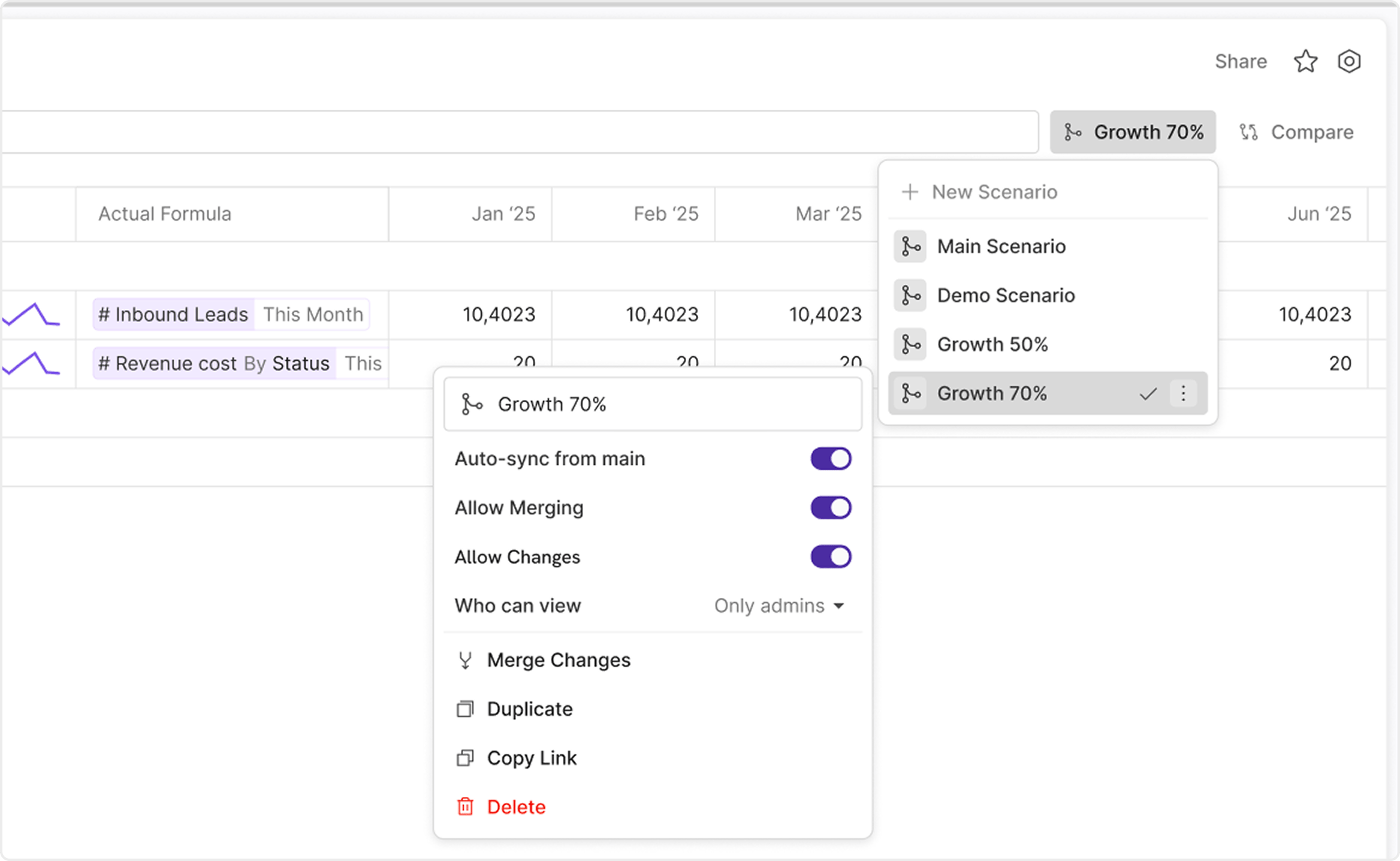
- Safe experimentation without changing the live model
- A locked baseline (budget, board plan, approved forecast)
- A review workflow (draft → review → merge)
Key concepts
- Main Scenario: the default “live” branch. It is always available and cannot be deleted.
- Scenario: a branch derived from Main (or duplicated from another scenario).
- Overrides: scenario-specific changes that differ from the inherited baseline.
- Inheritance / auto-sync: when enabled, non-overridden values continue to follow Main Scenario.
- Merge: directional operation that applies only overrides from a source scenario into a destination scenario.
Common tasks
1) Create a new scenario
- Open the Scenario switcher (top bar).
- Select New Scenario.
- Give it a clear name (example: “FY26 Base – Draft” or “Headcount Cut – Alt”).
- You’ll land in the new scenario.
- Use naming that encodes purpose and lifecycle (Draft/Review/Locked).
- Avoid duplicates; if you need iterations, add a suffix (v2, Apr, etc.).
2) Switch scenarios
- Open the Scenario switcher.
- Pick a scenario from the list.
- The active scenario should be visible at all times.
- Your editing context follows the active scenario.
3) Make changes safely
When you edit in a non-main scenario, changes should remain isolated to that scenario until you merge. If you’re unsure where you are:- Check the active scenario label before editing.
- If the product shows visual cues (badges/colors), treat them as authoritative.
4) Compare scenarios
Use Compare to review how a scenario differs from Main (or another baseline). Use cases:- “What changed vs Main?”
- “What’s the variance vs our locked budget scenario?”
5) Duplicate a scenario
Duplicate creates a new scenario using the current effective state of an existing scenario. Use this when:- You want to continue planning from an approved baseline.
- You want a new branch without disturbing the existing one.
- The duplicate should include the source’s effective values.
- Identity fields (created by/time) are new for the duplicate.
6) Merge changes
Merge moves overrides from a source scenario into a destination scenario (often Main). Steps:- In the source scenario, choose Merge Changes.
- Select the destination scenario.
- Confirm the merge.
- Merge is directional.
- You cannot merge a scenario into itself.
- Only overrides are merged (not a full snapshot).
- A merge should create an audit/history event.
Scenario settings (how to interpret them)
Auto-sync from main
- ON: your scenario keeps inheriting changes from Main, except where you’ve made overrides.
- OFF: your scenario stops receiving new Main changes; it becomes more “frozen.”
- Exploratory scenarios: Auto-sync ON
- Baselines/approvals: Auto-sync OFF
Allow Changes (Editability)
- ON: permitted users can edit the scenario.
- OFF: scenario is read-only (locked).
- UI edits should be blocked when OFF.
- API/import/job/agent writes should also be blocked.
Allow Merging (Mergeability)
- ON: scenario can be used in merge flows per permissions.
- OFF: merge should be disabled.
Who can view (Visibility)
- All Members: visible to everyone in the workspace.
- Only Admins: restricted visibility.
- Restricted scenarios should not appear in the switcher for unauthorized users.
- Direct links must still enforce permissions.
Rules of thumb
- Treat Main Scenario as the safe, default “truth” branch.
- Use a dedicated scenario for risky experiments.
- Lock scenarios that represent approved states.
- Merge intentionally, and prefer merging small, understood override sets.