
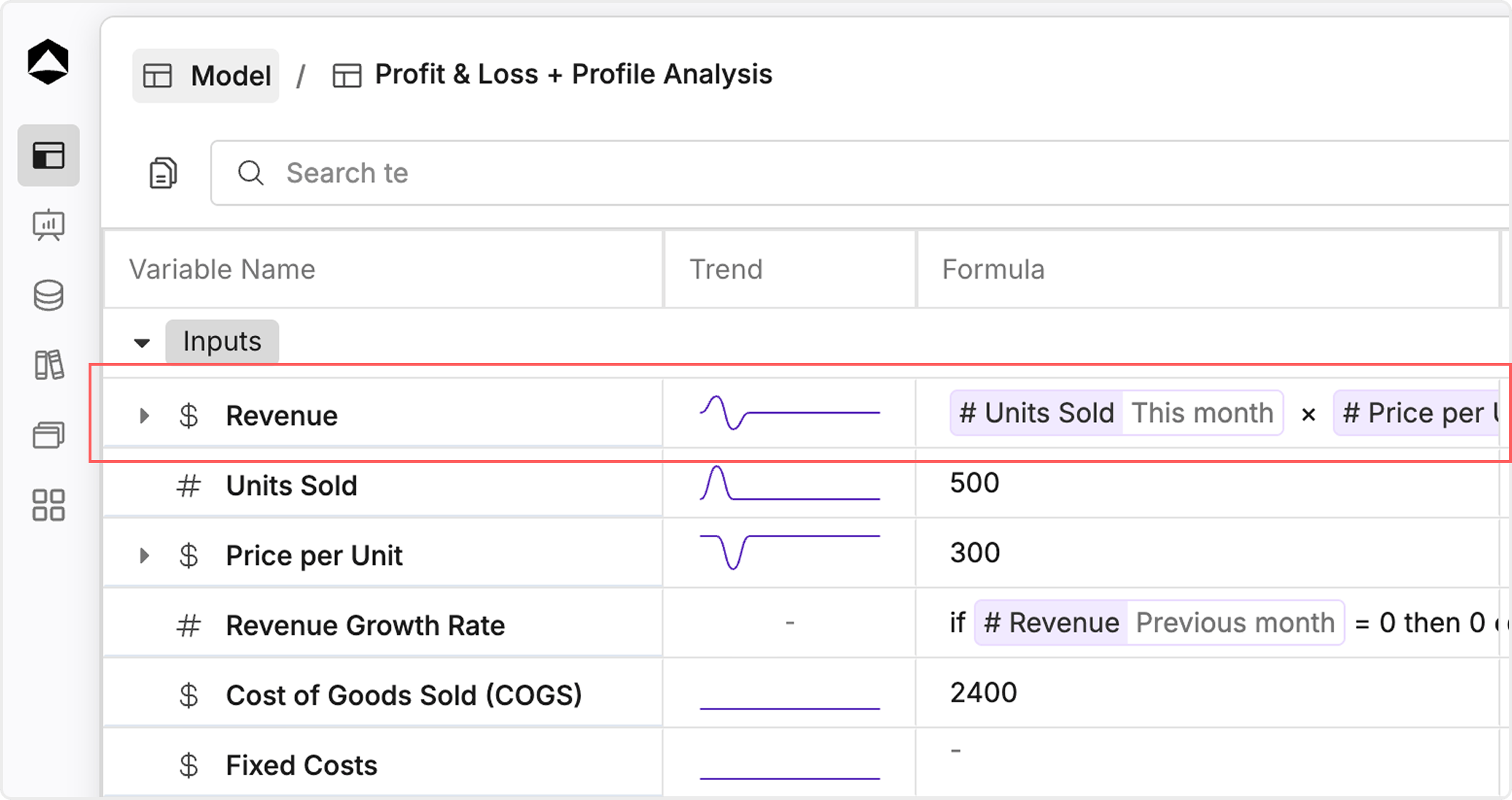
Formatting a variable
Formatting variables helps make your models clearer and easier to understand. You can apply various types of formatting depending on the kind of data your variable holds.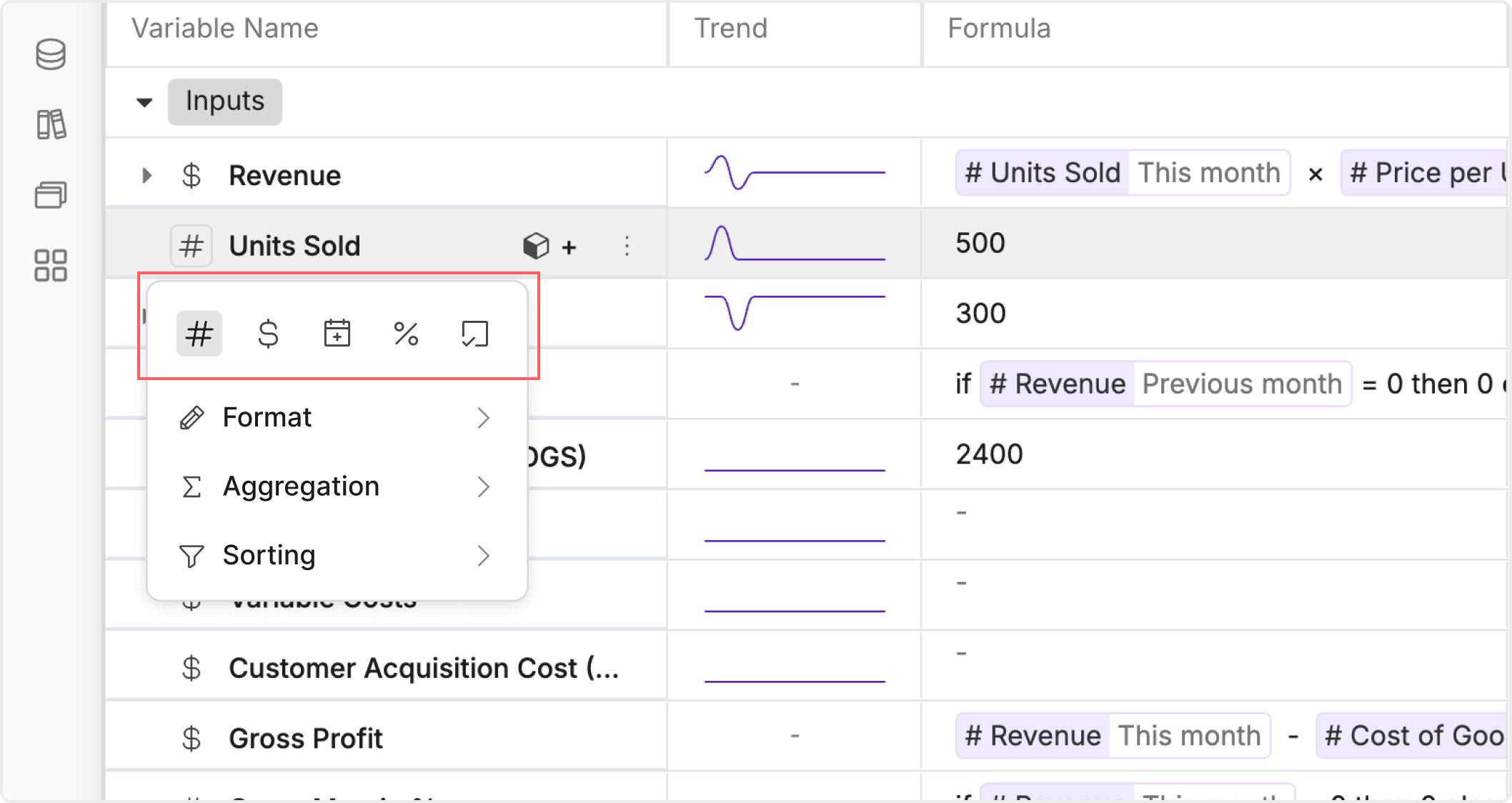
- Number → General numeric values
- Currency → Financial values like revenue or cost
- Percentage (%) → Ratios such as margins or growth
- Date → Time-based values
- Boolean → True/false logic
- Prefix / Suffix → Add symbols or units (e.g., $, %, users)
- Integer → Remove decimals for whole numbers
- Comma Separators → Improve readability (1,000,000)
- Zero Handling → Show zero as a dash (-) or value
- Negatives → Control how negative values appear
- Precision → Define decimal type and number of places
- Magnitude → Scale values (K, M, etc.)
- Relative Time → Adjust how time-based values are shown
- By Dimension → Combine values across categories (e.g., regions, products)
- By Time → Roll up values across periods (e.g., monthly → yearly)
- Ascending → Lowest to highest
- Descending → Highest to lowest
- Use currency for financial metrics
- Use % for ratios and growth
- Keep precision consistent across variables
- Use aggregation and sorting to highlight insights
Linking Variable:
What is Linking Variables? Linking Variables allows you to reuse variables from one model in another, eliminating the need to recreate them from scratch. This saves time and ensures consistency across multiple models.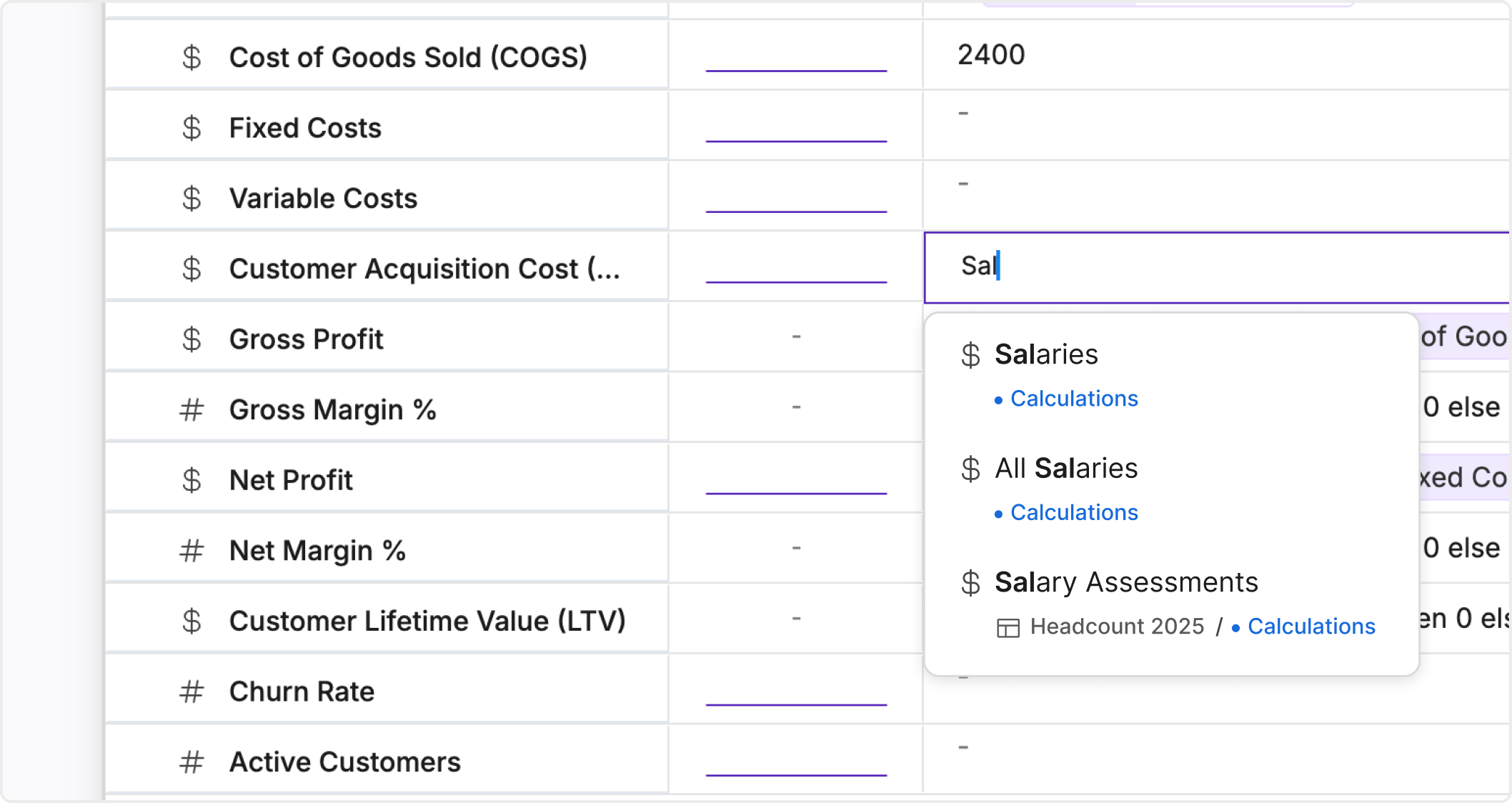
- A list of available variables from other models will appear.
- Search or filter to find the variable you need.
- Choose the variable you want to link, and it will automatically be added to your model.
Attaching Dimesnions in a Variable:
Dimensions let you break down variables into more granular categories, such as regions, products, or departments. By attaching dimensions to a variable, you can analyze and model data at a detailed level. How to Attach Dimensions to a Variable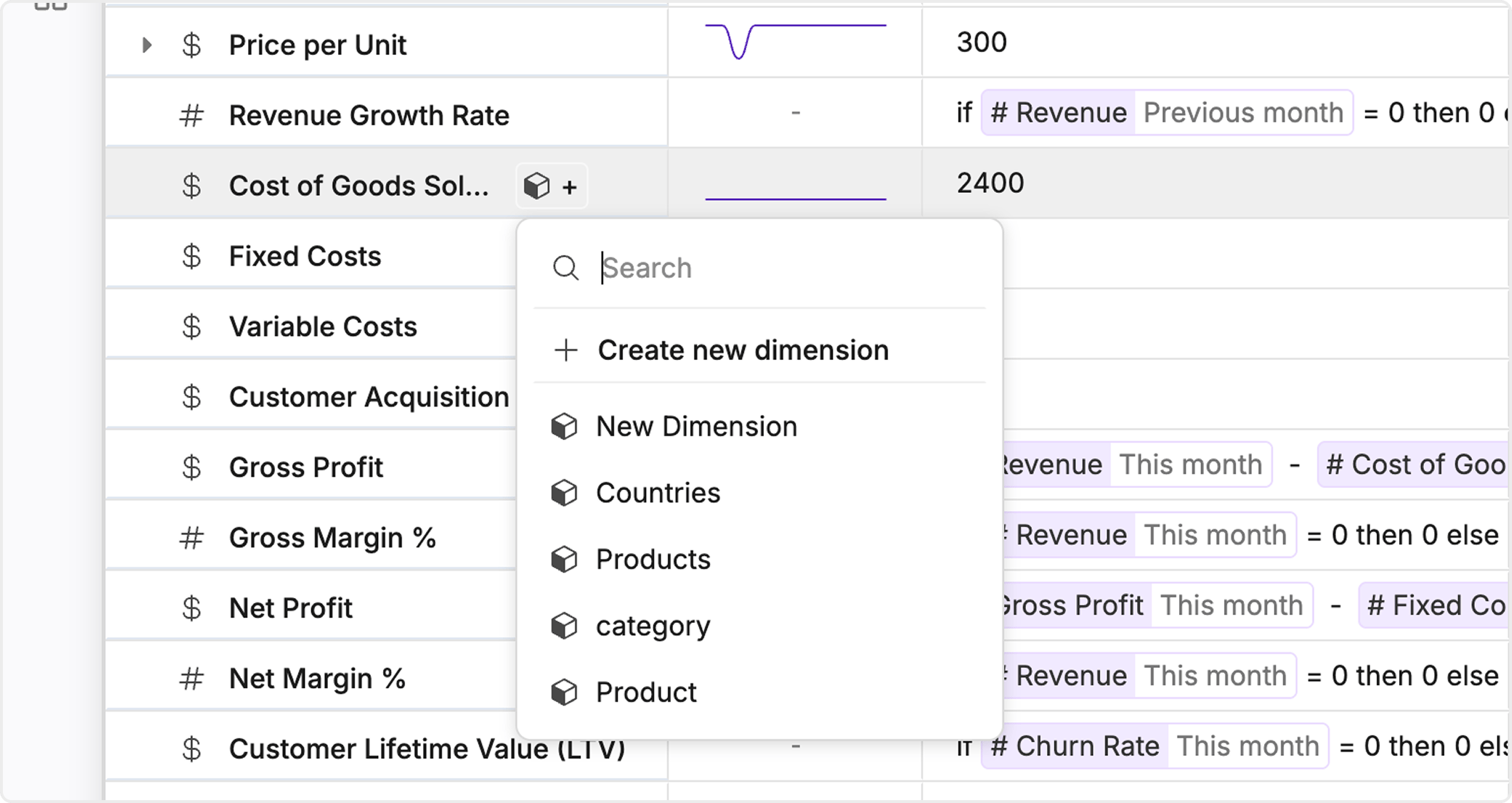
- Hover on Variable Cell
- Select “Add Dimension” Icon
- Choose or Create a Dimension
- Select from existing dimensions like Region, Product, or Department.
- Or create a new dimension by defining categories (e.g., North, South, East for Region).
- Apply the Dimension
Sections and Variables:
Sections help you group and organize variables in your spreadsheet view for easy navigation and better structure.Moving Variable:
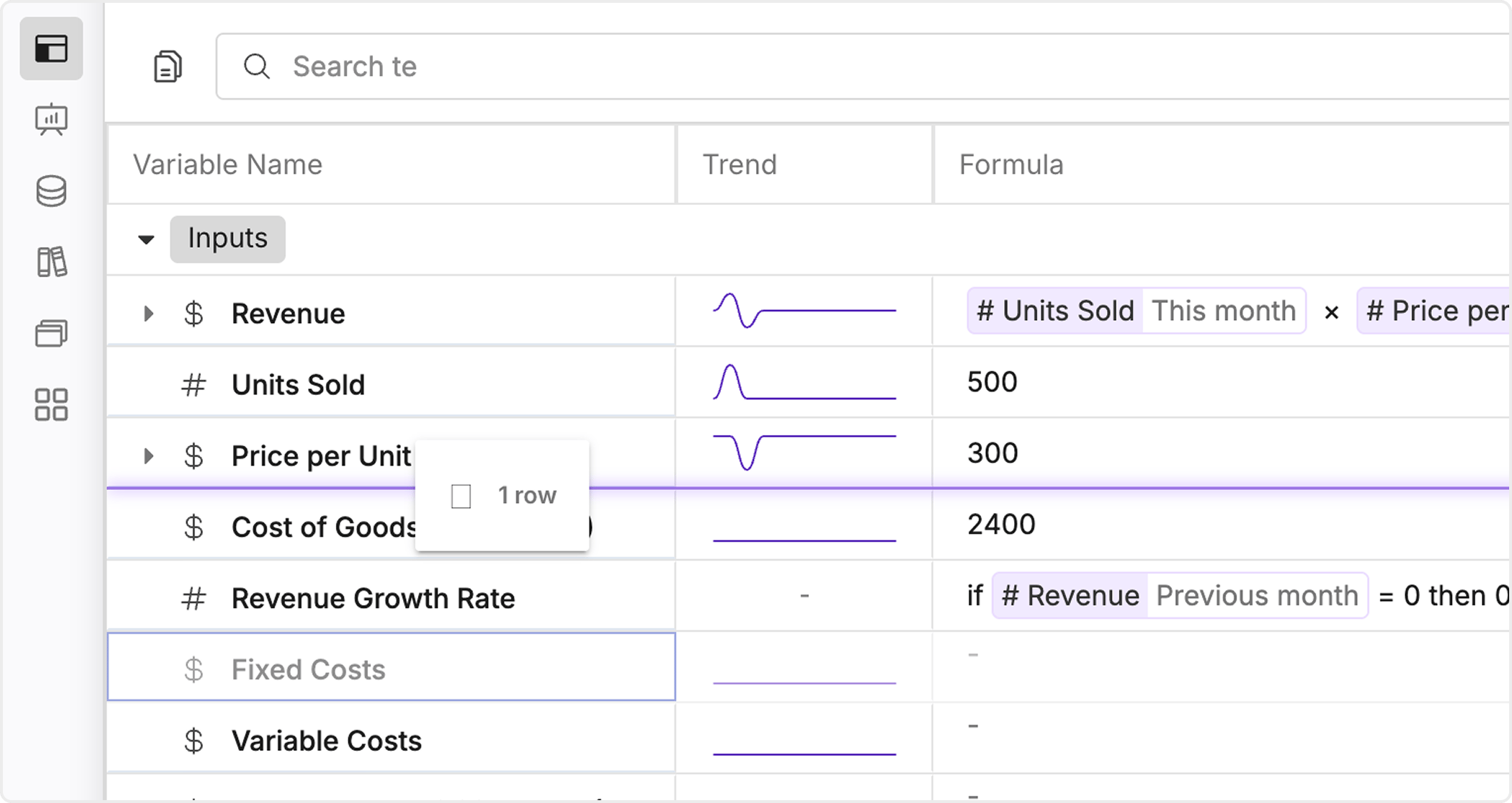
Moving Variables within the same model To move a variable inside your current model, just grab the variable and drag it to a different section.